


Windows POS system for real stores, not expensive hardware bundles
Good Cashier lets you build a practical Windows POS system using a normal computer, low-cost peripherals, and the workflows real stores need every day. Sell, print receipts, scan barcodes, manage inventory, and run reports without buying a costly all-in-one POS machine first.
If you already have a home PC, shop desktop, or a low-cost Windows laptop, you can turn it into your own cashier system and start with a much smaller hardware budget.
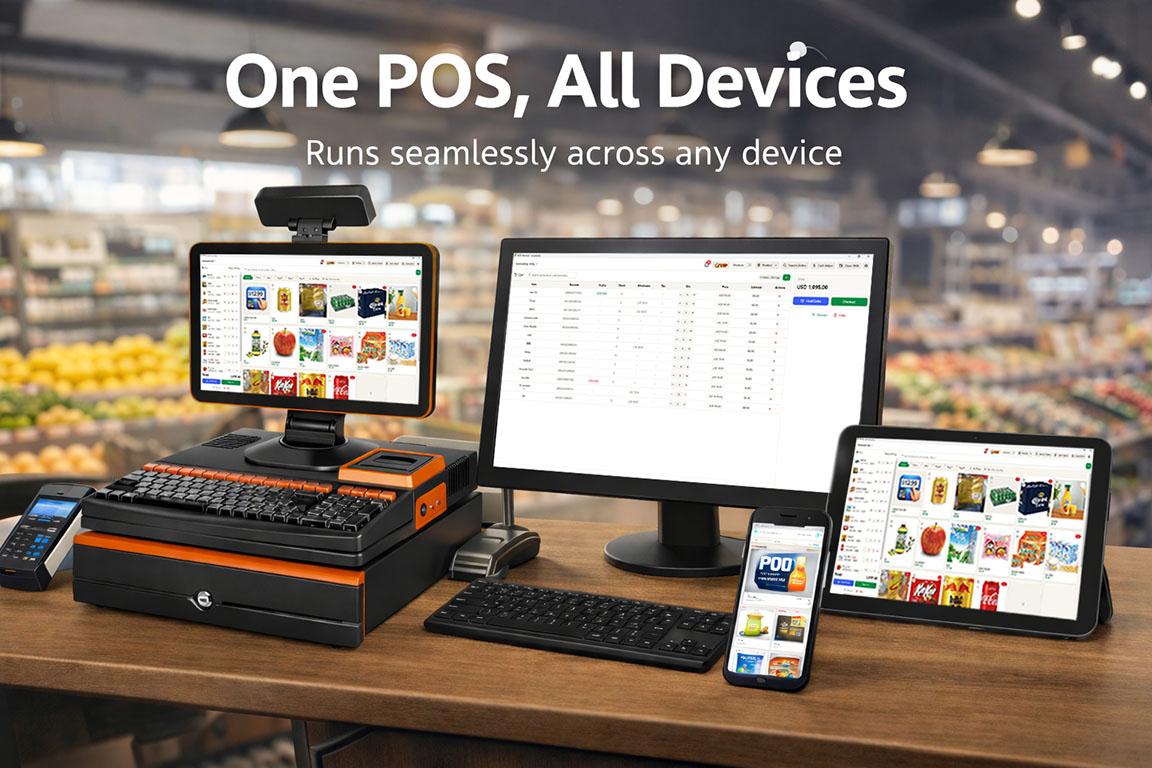
Why Windows is a strong POS choice for small business
For many store owners, Windows is still the easiest way to build a cashier setup that feels familiar, affordable, and compatible with common shop devices.
Use a normal home computer
You do not need expensive branded POS hardware to get started. A normal Windows desktop or laptop can become your cashier system for daily retail selling.
Lower setup cost for small shops
If you already have a family PC, an old shop computer, or a low-cost Windows laptop, you can build your own POS setup with much less upfront cost.
Wide device compatibility
Windows setups are easier to pair with receipt printers, barcode scanners, keyboards, mice, label printers, and many common USB accessories used in stores.
Familiar workflow for store owners
Many shop owners and staff already know how to use Windows. That reduces training time and makes product management, reporting, and printing easier.
What you can run on a Windows POS setup
Good Cashier is not just a payment screen. It covers selling, printing, product control, and store management from the same system.
Receipt printer support
Run checkout and receipt printing from a Windows cashier station with a dedicated printer setup.

Barcode scanner workflow
Use USB scanners for faster item entry, barcode search, and stock handling in stores with many products.
Inventory and stocktake on one PC
Manage products, stock in and out, expiry dates, and stocktake tasks from the same Windows dashboard.

Works for single stores and chain stores
Use one Windows setup in a single shop, or connect multiple locations with transfers, location settings, and reporting.
A low-cost way to build your own cashier system
Many small businesses do not want to spend heavily before they even know whether a new system fits their workflow. A Windows POS system gives you more flexibility because you can often start with devices you already own, then add printers, scanners, or label hardware as your shop grows.
This makes Windows especially practical for grocery stores, convenience stores, small retail shops, liquor stores, and family-run businesses that want better control without buying an expensive all-in-one hardware package.
Typical Windows POS use cases
- •Retail store POS system
- •Grocery and minimart checkout
- •Liquor and cocktail shop inventory
- •Barcode-based cashier workflow
- •Low-cost store setup on an existing PC
- •Back office management on Windows
Download Good Cashier for Windows
Use the Windows version for back-office setup and cashier workflows, then expand to Android if your store also wants mobile selling or device flexibility.
Windows POS system FAQ
Clear answers for store owners comparing setup cost, compatibility, and daily workflow.
Can I use Good Cashier on a normal Windows computer?
Yes. Good Cashier is designed so a normal Windows desktop or laptop can be used as your POS and dashboard environment.
Do I need expensive POS hardware?
No. Many stores can start with an existing PC, a receipt printer, and a barcode scanner. This keeps setup costs much lower.
Is a Windows POS system better for compatibility?
For many stores, yes. Windows is often easier when connecting common retail accessories such as receipt printers, barcode scanners, keyboards, and USB devices.
Can I manage inventory and reports on Windows too?
Yes. Good Cashier includes product setup, inventory management, stocktake, reports, and multi-location tools in the Windows workflow.
Explore the full retail POS setup
Compare POS features, Windows POS, Android POS, tutorials, and contact guidance so you can choose the right setup for your store.
Features
POS Features
Explore Good Cashier POS features for sales, inventory, barcode printing, staff permissions, stocktake, VIP loyalty, locations and chain store operations.
Android POS
Android POS
Run Android POS selling flows on tablets and mobile devices with barcode scanning, VIP checkout, wallet payment and flexible cashier workflows.
Tutorial
POS Tutorials
Read Good Cashier POS tutorials for products, inventory, barcode printing, stocktake, VIP members, locations, staff, alerts and stock transfers.
Contact
Contact
Contact Good Cashier about Windows POS, Android POS, inventory migration, barcode printing, retail setup and multi-store rollout planning.