POS Tutorials and Help Center

Learn Good Cashier by feature, workflow, and keyword. Search POS tutorials or browse by category to find products, sales, inventory, VIP, stock transfers, settings, and more with full image guides.

Search tutorials

Tutorial library

Find setup help, feature guides, and workflow explainers for products, inventory, sales, VIP, and chain-store tools.

Tutorial library

11 tutorials

Products and product setup

Products

Products and product setup

Create products, add images, barcode values, package units, bundle items, and stock rules.

productsbarcodebundlepackagestock
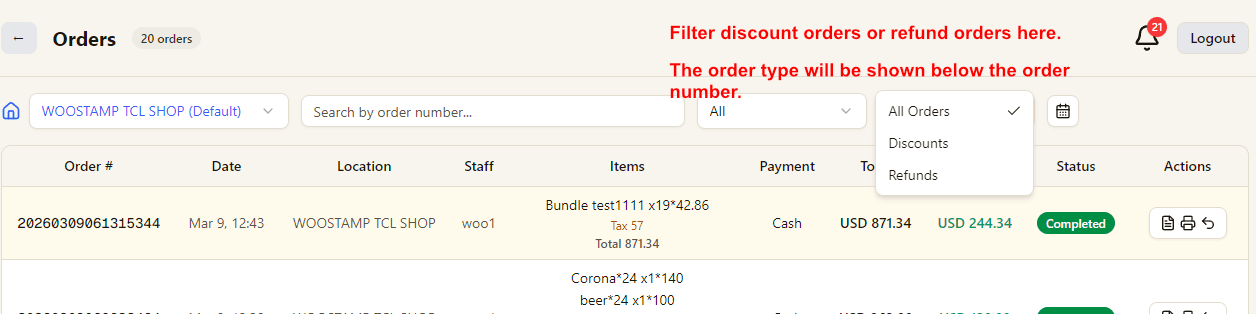
Sales, orders, and invoice workflows

Sales

Sales, orders, and invoice workflows

Review orders, filter by date or type, print receipts and invoices, and inspect refund activity.

salesordersinvoicerefund
Alerts and review reminders

Alerts

Alerts and review reminders

Track low stock, negative stock, expiry issues, and review-needed operations from one page.

alertsexpirynegative stockreview
Inventory movement and adjustments

Inventory

Inventory movement and adjustments

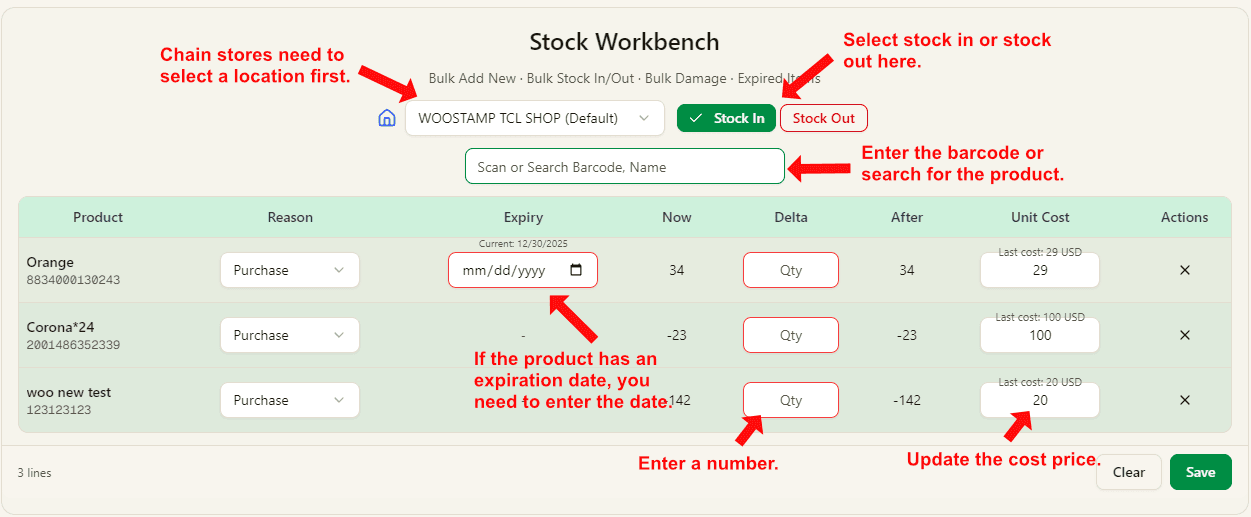
Handle stock in, stock out, damage, expiry tracking, and cost-aware inventory changes across locations.

inventorystock instock outexpirycost
Stocktake workflow

Stocktake

Stocktake workflow

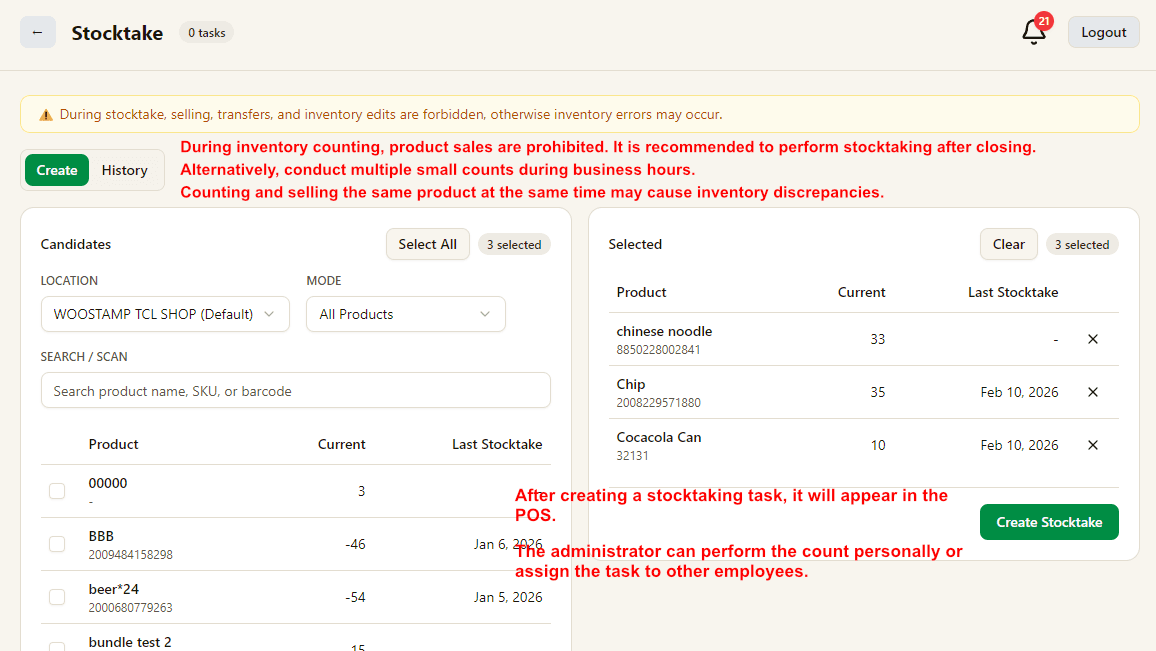
Count stock, submit variances, and finalize store or chain stocktake tasks with owner approval.

stocktakecountvarianceapproval
Transfer stock between locations

Stock Transfers

Transfer stock between locations

Move stock between stores or warehouses, receive items in POS, and keep transfer history clean.

stock transferlocationswarehousereceive
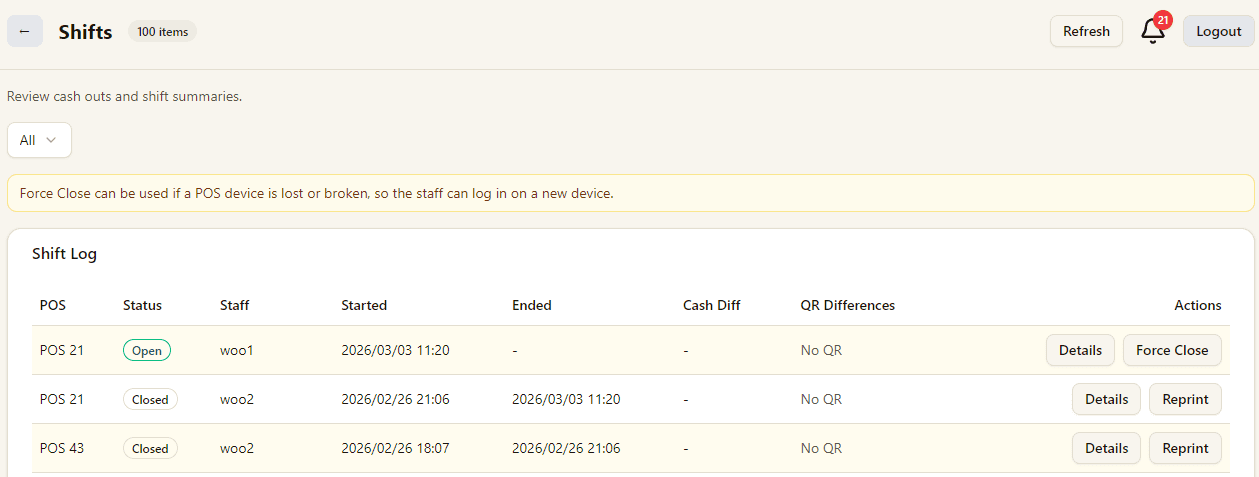
Shift review and force close

Shifts

Shift review and force close

Review cashier shift details, inspect cash movement, and force close old shifts when needed.

shiftscashierforce close
Staff accounts and permissions

Staff

Staff accounts and permissions

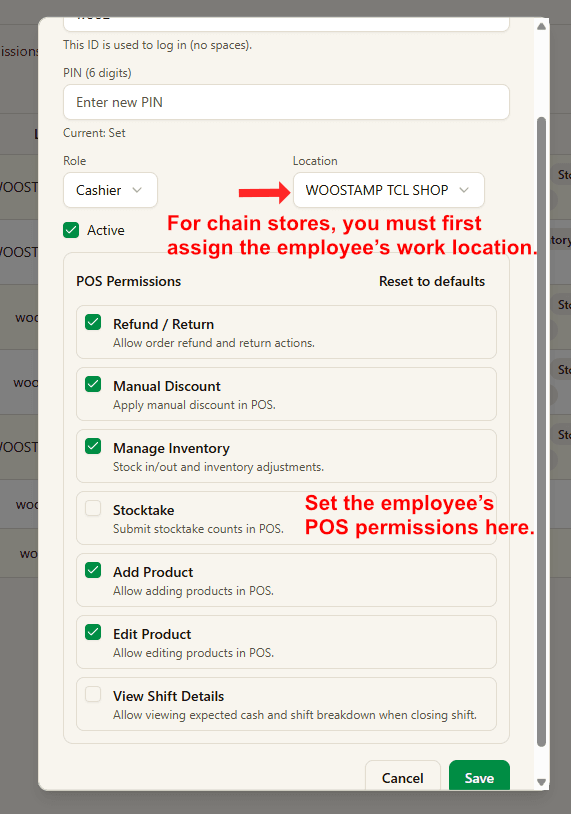
Add staff, assign locations, manage POS permissions, and understand free-plan versus paid-plan limits.

staffpermissionslocationowner
VIP members, wallet, and points

VIP

VIP members, wallet, and points

Create members, top up wallet, earn points, redeem points, and manage repeat-customer benefits.

vipmemberswalletpoints
Locations, receipt headers, and QR payments

Locations

Locations, receipt headers, and QR payments

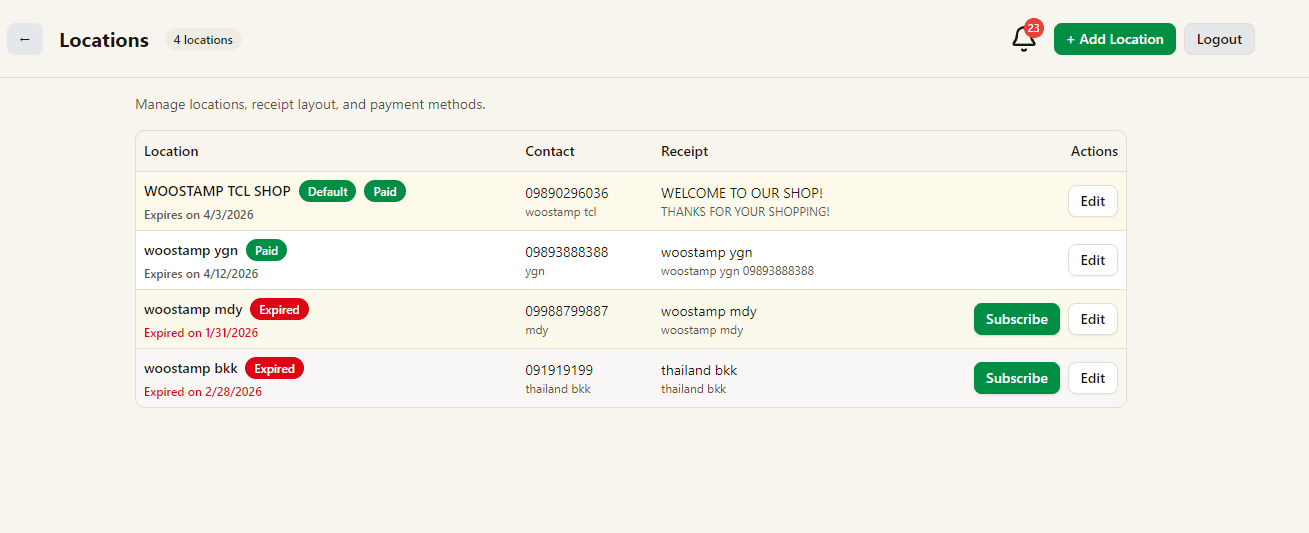
Treat stores or warehouses as locations, configure receipt branding, and assign different bank accounts or QR codes by location.

locationsreceiptqrwarehouse
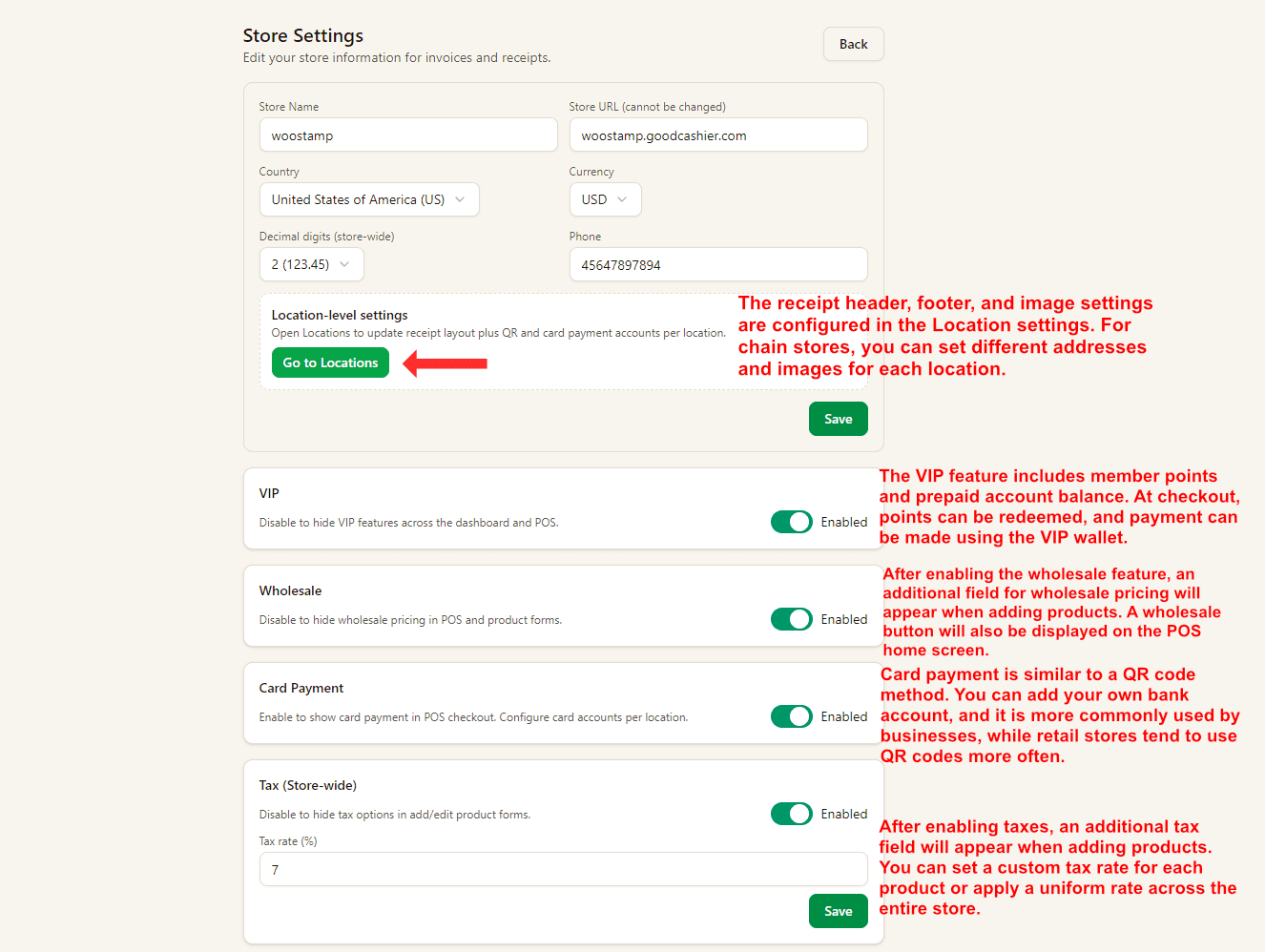
Store settings and global switches

Settings

Store settings and global switches

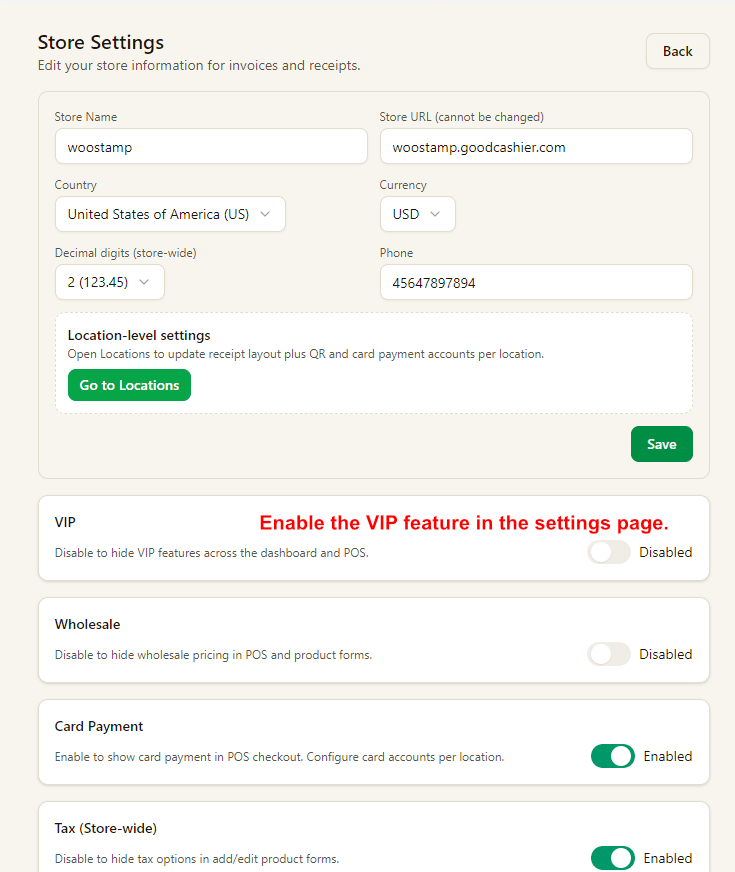
Manage store-level settings such as VIP, wholesale, card payment, and tax options from one page.

settingsviptaxwholesalecard payment

Products

Products Tutorial

Quick guide for adding products, editing inventory, and using barcode workflow.

productsbarcodebundlepackagestock
Products and product setup

1. Add a Product

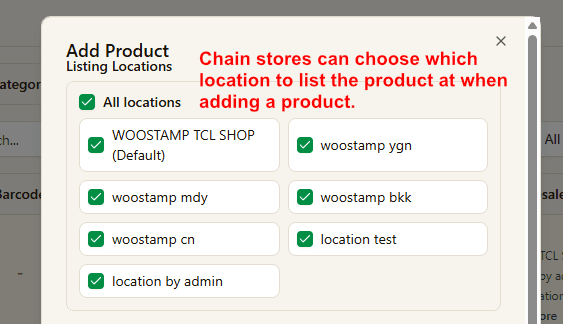
Add product listing locations
Add product image and barcode
Add product pricing settings
Add product inventory and expiration

Select the listing locations first. Chain stores can choose exactly which locations should show this product.

Choose image or color, then enter product name and barcode. You can scan a barcode or generate one automatically.

After the first setup, manage future expiration updates from the Inventory page when you restock.

  • Enable price by weight for weighed items.
  • Wholesale price must be enabled in Settings before you can use it in sales.
  • Tax mode must also be enabled in Settings. It is off by default.

2. Barcode Generate and Print

Generate barcode button
Barcode printing settings
  • Enter product name and barcode value.
  • Click Generate to create the barcode preview.
  • Click Print Barcode to open the print dialog.
  • Install the GoodCashier Dashboard EXE on the computer and connect a supported label printer.
  • Open the Device page in the Dashboard EXE and select your printer first.
  • Use GDI (Recommended) unless support tells you to use another mode.
  • Choose label size, content, copies, then click Print.

3. Package Unit (Auto Split)

Package Unit auto split example

A = B x 12. A is the parent pack product and B is the child unit product. One A contains 12 units of B.

When B stock is not enough during sale, the system automatically splits A into B and completes the sale.

This is fully automatic. No manual warehouse stock adjustment is required.

  • Example setup: A = B x 12.
  • Current stock: A = 2, B = 1.
  • Customer buys 3 bottles of B.
  • System auto-splits one A, then deducts sale quantity from B.
  • Final stock: A = 1, B = 10.

4. Bundles (Combo Product)

Bundle setup example
Bundle stock behavior

C = A x 2 + B x 2. C is the bundle product, and A and B are component products.

A and B must already exist before you create bundle C.

If you enter an initial quantity while creating C, the system deducts A and B inventory immediately by the bundle ratio.

If you leave the quantity empty, component inventory is deducted automatically at sale time.

Related Pages

Explore the full retail POS setup

Compare POS features, Windows POS, Android POS, tutorials, and contact guidance so you can choose the right setup for your store.

Features

POS Features

Explore Good Cashier POS features for sales, inventory, barcode printing, staff permissions, stocktake, VIP loyalty, locations and chain store operations.

Open POS Features

Windows POS

Windows POS

Use a Windows POS system on family PCs, old desktops or shop computers with barcode scanners, receipt printers and easy store management.

Open Windows POS

Android POS

Android POS

Run Android POS selling flows on tablets and mobile devices with barcode scanning, VIP checkout, wallet payment and flexible cashier workflows.

Open Android POS

Contact

Contact

Contact | Good Cashier

Open Contact
POS Tutorials and Help Center | Good Cashier