

Locations, receipt headers, and QR payments
Treat stores or warehouses as locations, configure receipt branding, and assign different bank accounts or QR codes by location.
QR payments & shift reconciliation
Watch on YouTube1. Every Branch or Warehouse Is a Location
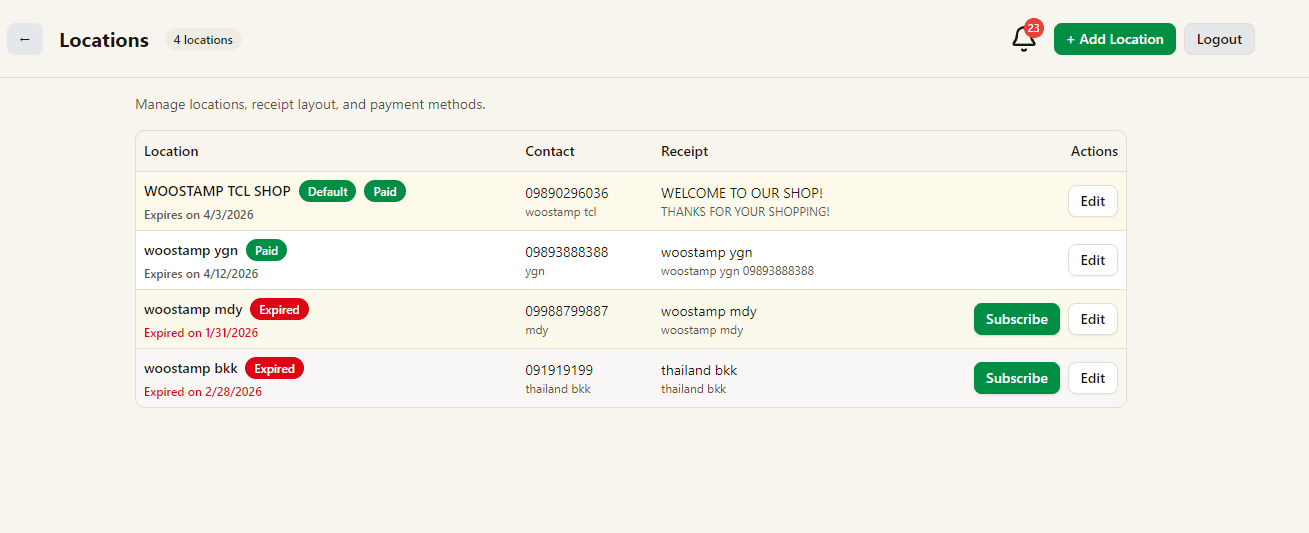
In GoodCashier, every branch, warehouse, or operating store is treated as a location.
The Locations page shows all locations in one list, including which one is default and which ones are paid or expired.
2. Each Location Has Its Own Receipt Settings
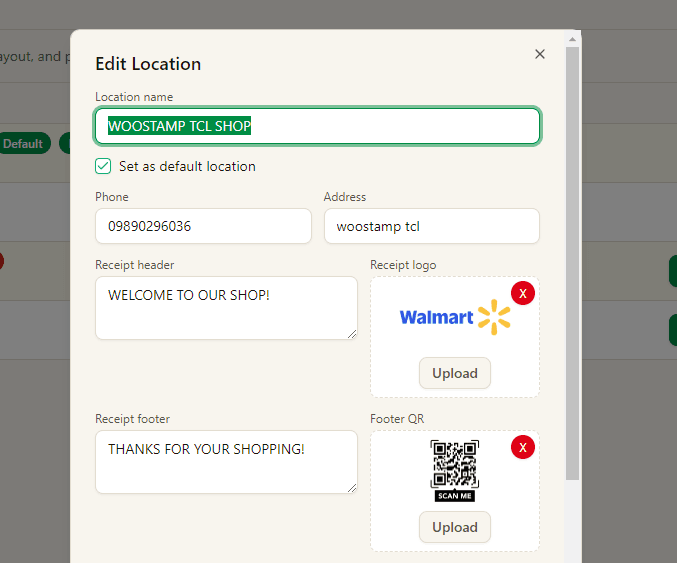
Open Edit Location to configure contact details, receipt header, receipt footer, receipt logo, and footer QR for that location.
Different locations can use different receipt text and different receipt images.
3. Set Different Bank Accounts and QR Codes
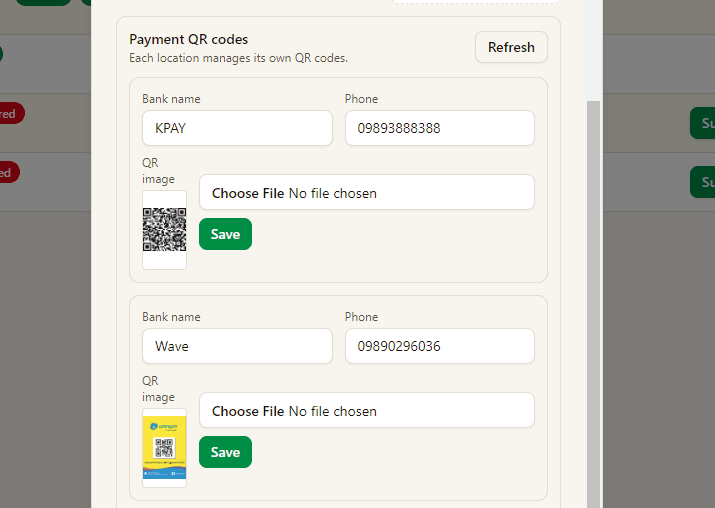
Inside each location, you can add separate bank names, phone numbers, and QR images for payment collection.
This lets every location use its own receiving accounts and its own QR codes.