
1. Filter Discounts and Refunds

Use the order type dropdown to filter normal orders, discounts, or refunds. The selected type is shown below each order number.
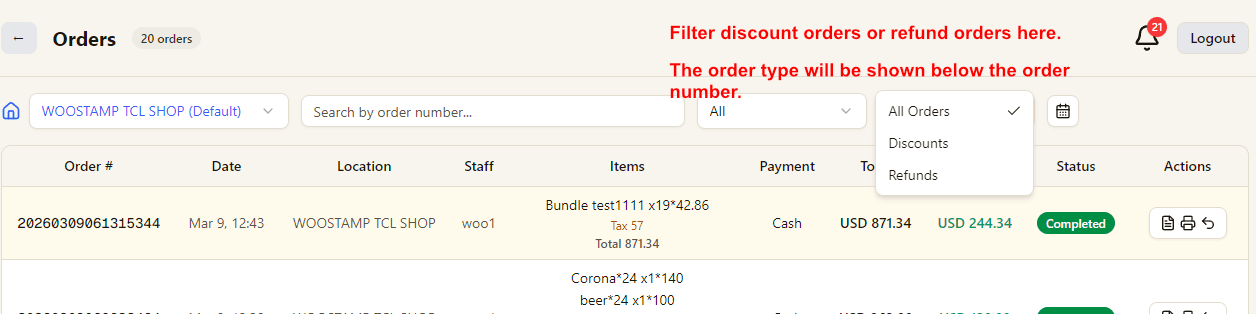
Orders filter by type

2. Check Operator Information

For discount and refund records, the operator name is shown in the order row for audit and tracking.

Refund and discount operator display

3. Open Invoice Action

In the actions menu, click Invoice to print an invoice for that order.

Open invoice action from orders list

4. Enter Customer Information

Fill customer details such as name, phone, email, address, and notes before printing.

Invoice customer form

5. Confirm Invoice Preview and Print

Review invoice content, totals, and layout in the preview window, then print it for the customer.

Invoice print preview
Related Pages

Explore the full retail POS setup

Compare POS features, Windows POS, Android POS, tutorials, and contact guidance so you can choose the right setup for your store.

Features

POS Features

Explore Good Cashier POS features for sales, inventory, barcode printing, staff permissions, stocktake, VIP loyalty, locations and chain store operations.

Open POS Features

Windows POS

Windows POS

Use a Windows POS system on family PCs, old desktops or shop computers with barcode scanners, receipt printers and easy store management.

Open Windows POS

Android POS

Android POS

Run Android POS selling flows on tablets and mobile devices with barcode scanning, VIP checkout, wallet payment and flexible cashier workflows.

Open Android POS

Contact

Contact

Contact Good Cashier about Windows POS, Android POS, inventory migration, barcode printing, retail setup and multi-store rollout planning.

Open Contact
Sales, orders, and invoice workflows | Good Cashier POS Tutorial