

VIP members, wallet, and points
Create members, top up wallet, earn points, redeem points, and manage repeat-customer benefits.
Loyalty, wallet top-ups & member checkout
Watch on YouTube1. Enable VIP First
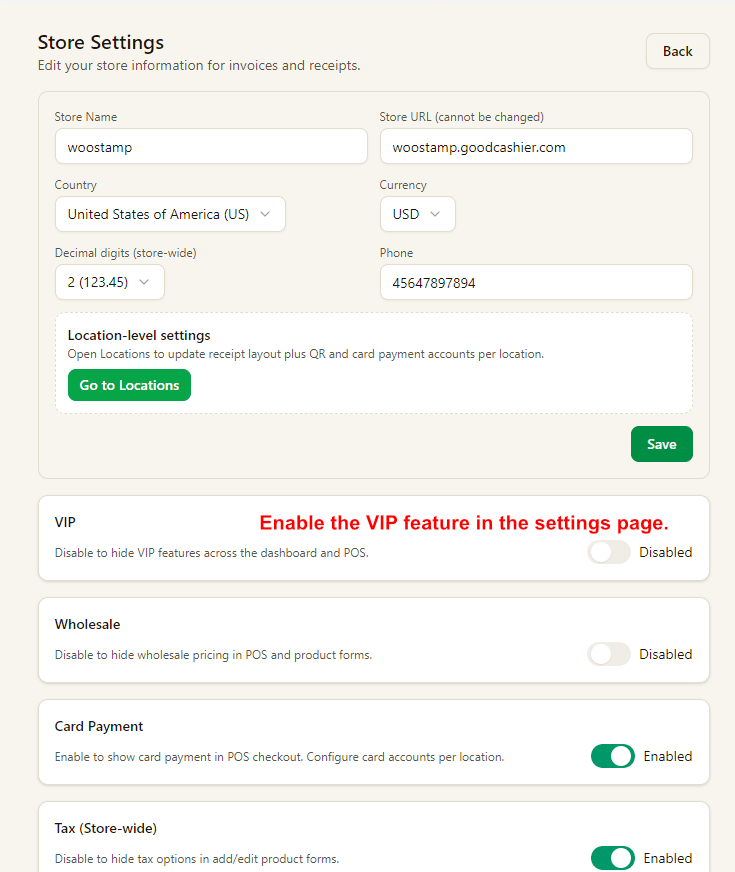
Go to Settings and turn on the VIP switch first.
Once enabled, VIP tools appear in both dashboard and POS.
2. Open VIP in POS and Find a Member
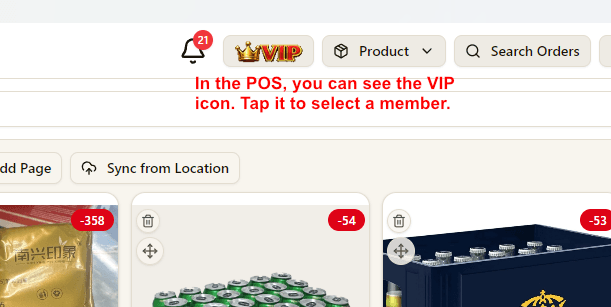
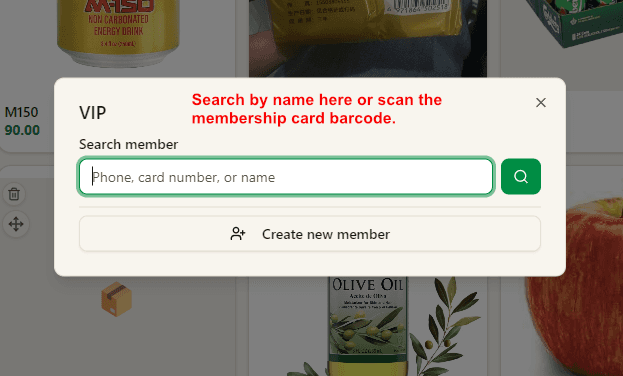
In POS, tap the VIP button to open member search.
You can search by member name, phone number, card number, or scan the membership barcode directly.
3. Add the Member to the Current Order
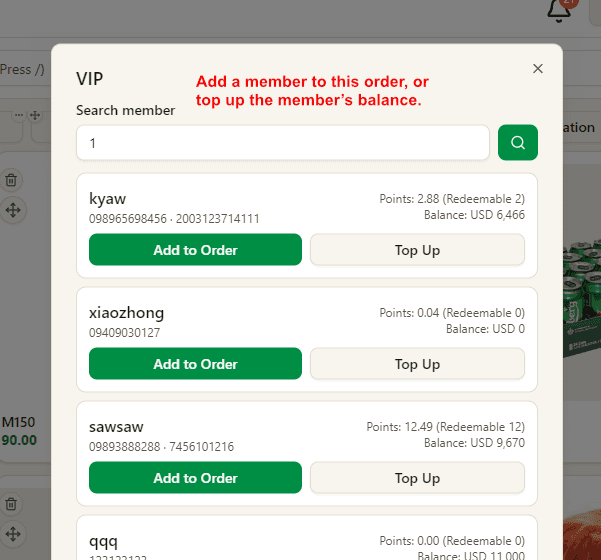
After finding the correct member, tap Add to Order.
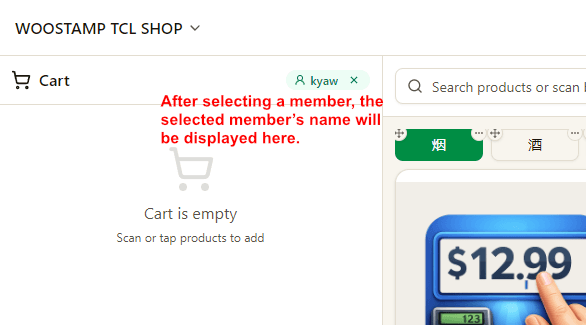
The member name then appears in the cart header so you know the order is linked.
4. Redeem Points or Pay with Wallet
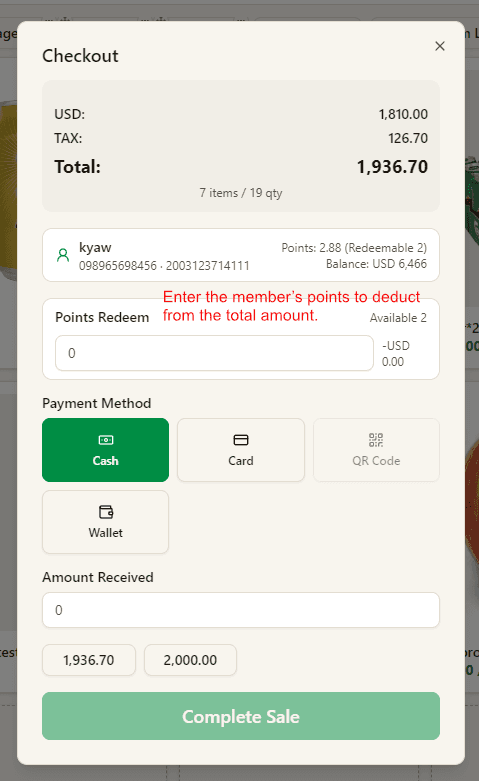
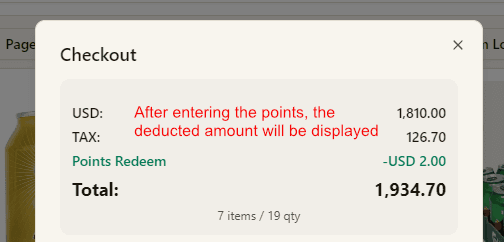
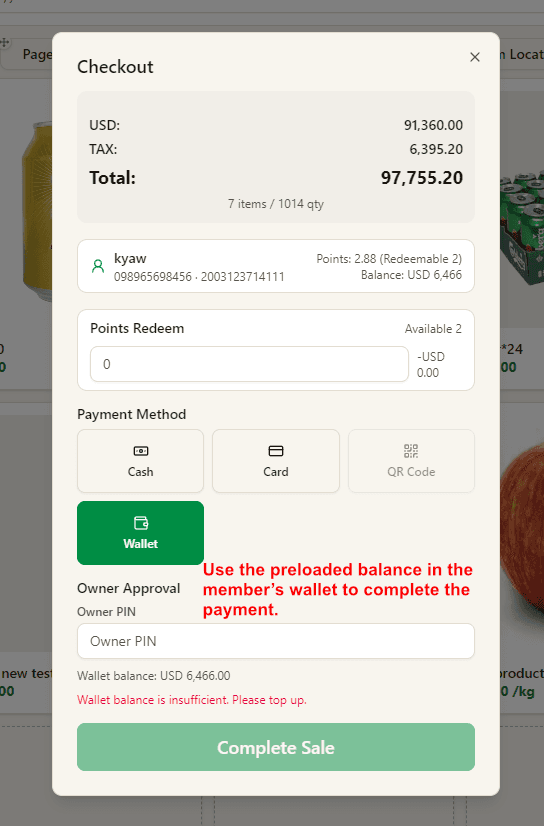
In checkout, you can enter redeemable points to reduce the total or use the member wallet balance as payment.
The discount and remaining payable amount are shown immediately.
5. Create Members, Top-Up Packages, and Recharge Wallet
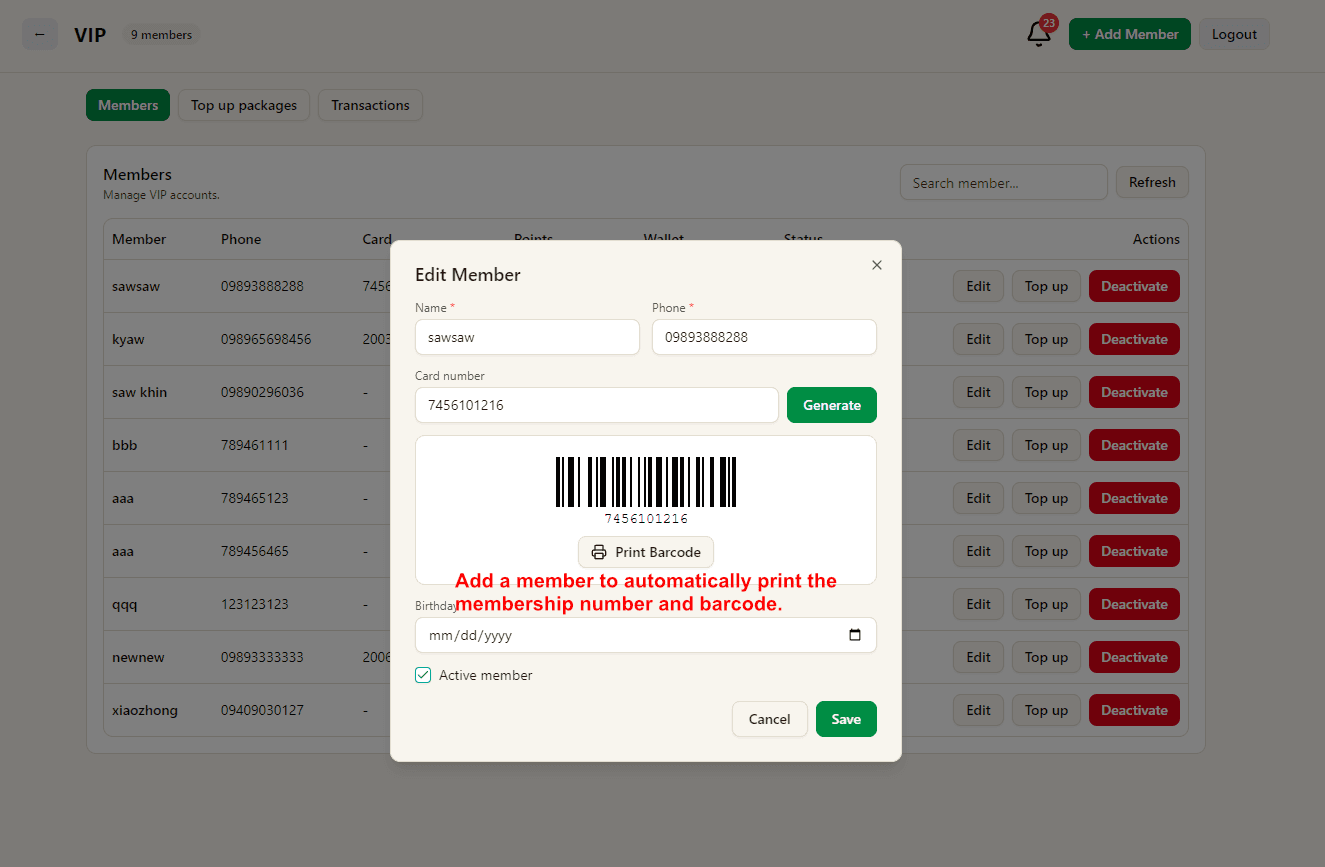
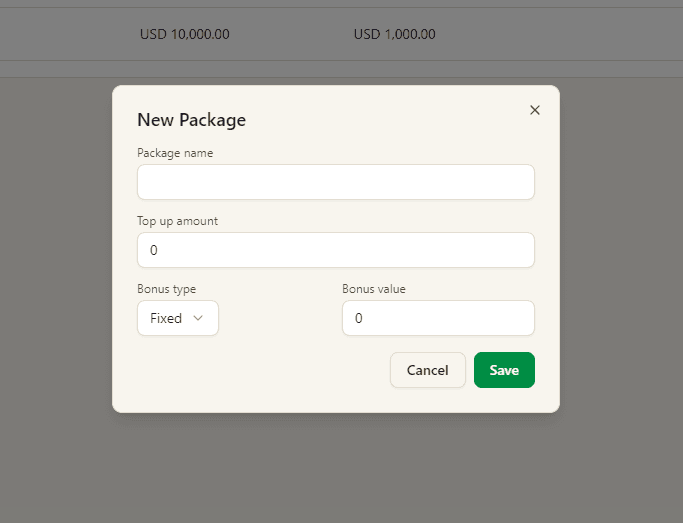
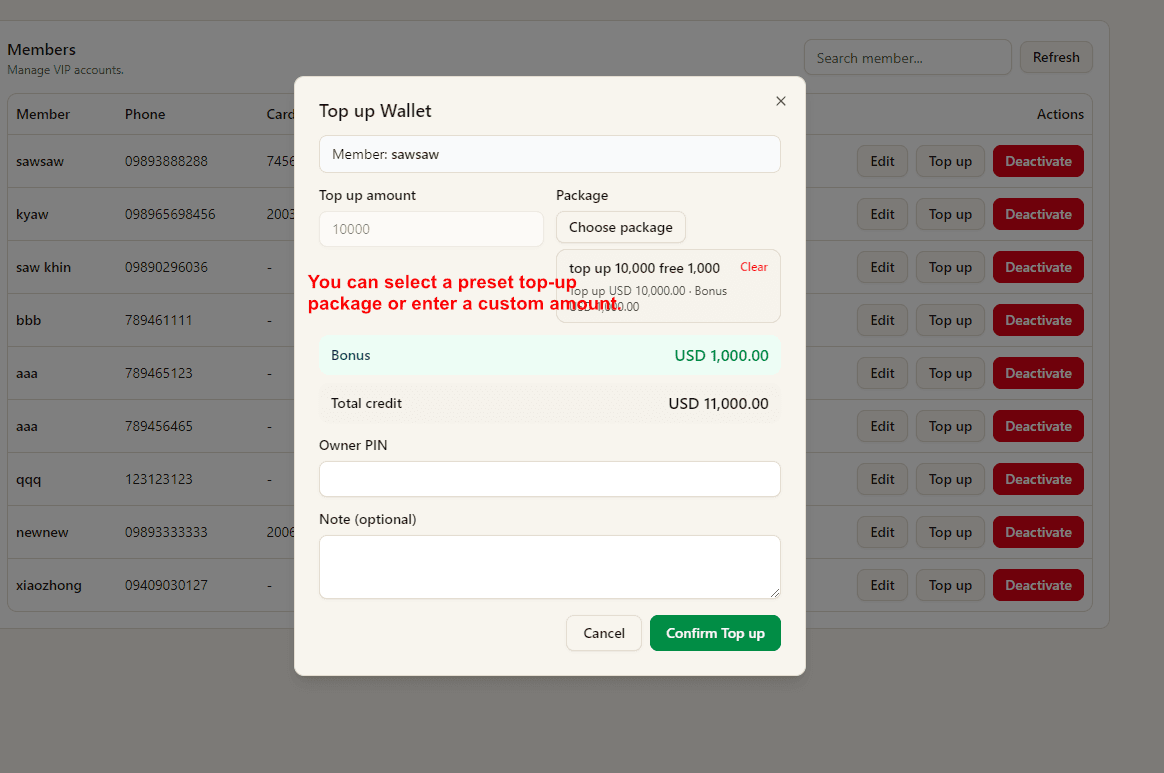
In the dashboard VIP page, create members, print membership barcodes, define preset top-up packages, and top up wallets with a package or manual amount.
Use the Transactions tab later to review wallet top-ups, point changes, and member activity.