
1. Review Shift Logs and Status

Use the shifts page to review POS sessions by status, staff, start and end time, cash difference, and QR differences.

If a device is lost or broken, use Force Close so staff can log in on a new device.
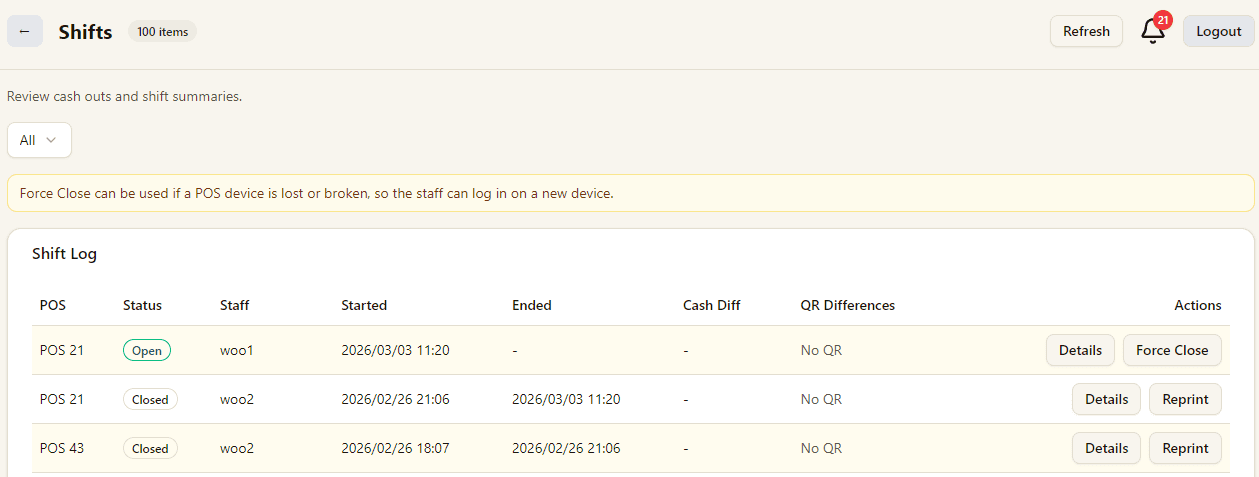
Shifts log list

2. Confirm Force Close Carefully

Force Close ends the shift immediately without cash counting.

This action cannot be undone, and actual cash, differences, and QR closing values may stay blank.
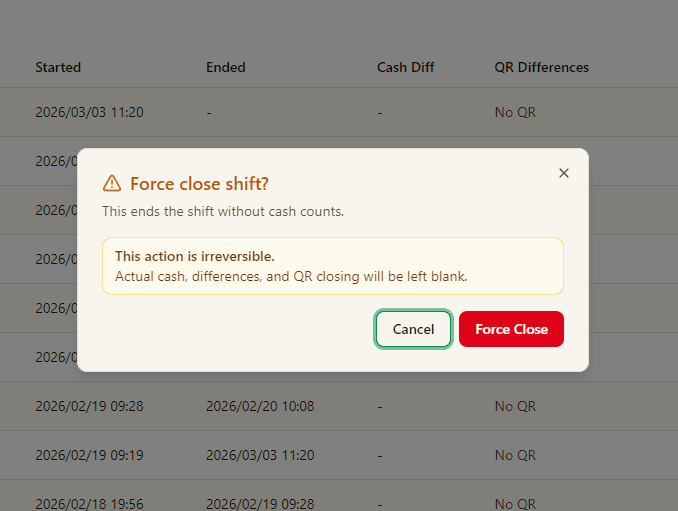
Force close shift confirmation dialog
Related Pages

Explore the full retail POS setup

Compare POS features, Windows POS, Android POS, tutorials, and contact guidance so you can choose the right setup for your store.

Features

POS Features

Explore Good Cashier POS features for sales, inventory, barcode printing, staff permissions, stocktake, VIP loyalty, locations and chain store operations.

Open POS Features

Windows POS

Windows POS

Use a Windows POS system on family PCs, old desktops or shop computers with barcode scanners, receipt printers and easy store management.

Open Windows POS

Android POS

Android POS

Run Android POS selling flows on tablets and mobile devices with barcode scanning, VIP checkout, wallet payment and flexible cashier workflows.

Open Android POS

Contact

Contact

Contact Good Cashier about Windows POS, Android POS, inventory migration, barcode printing, retail setup and multi-store rollout planning.

Open Contact
Shift review and force close | Good Cashier POS Tutorial